How the pictures on this site were made
The footer says it: illustrations generated by hand in Google Flow, through Asset Prompter. Here are the slots, the files and the steps behind them.
One project, a slot for each asset
Every illustration and clip in the site's assets/art/ folder came out of one Asset Prompter project,
asset-prompter-landing. Each was asked for as a slot, a folder for one asset. Each of those
files is named after its picture's slot: <slot>.webp for the picture, <slot>.mp4 for
the clip that starts on it. The illustrations were generated by hand in Google Flow. The two generated photos in
“What it is good for” on the home page are results from orbital-eats, the project the
screenshots of the app come from.
| Slot | Kind | Where it is on the home page | File on the site |
|---|---|---|---|
loop-relay |
A picture | The top of the page, as the still before its clip plays | assets/art/loop-relay.webp, 1280 × 714 |
loop-relay-clip |
A video slot: the hero's clip | The top of the page, and “It checks a clip it can't play” with frame sheet 003 and the motion map of its version 2 | assets/art/loop-relay.mp4 and loop-relay-av1.mp4; assets/demo/clip-loop-relay-frames.webp, 1280 × 720; clip-loop-relay-motion.webp, 640 × 360 |
you-are-the-server |
A picture | “To your agent, the same steps as an MCP server” | assets/art/you-are-the-server.webp, 960 × 716 |
problem-courier |
A picture | “Without it, you are the courier” | assets/art/problem-courier.webp, 1280 × 714 |
you-press-generate |
A picture | “It doesn't generate anything” | assets/art/you-press-generate.webp, 960 × 716 |
gallery-full |
A picture, and the clip that starts on it (its video slot is not recorded here) | The closing section, “Give your agent a way to ask for pictures.” | assets/art/gallery-full.webp, 1280 × 714; gallery-full.mp4 and gallery-full-av1.mp4 |
The page was built slot first. Until a slot's file exists, the page draws the place it will take as a dashed frame with the slot's name and what the picture should show, under the same “Needs generating” the app puts on a card that waits for you:
The loop a picture goes through
A slot is a folder, and the agent and you take turns in it. The six steps on the home page show one picture going round; this is who writes which file, as the app's README lays the folder out:
- The agent writes
slot.md, what the asset is for, andv1.md: the prompt, with the settings in front of it (tool,type,model,mode,aspect_ratio,duration,inputs). - You copy the prompt into the generator, press Generate there, and drop the result on the slot's card. It lands in
v1/. - The agent opens the result and writes
v1.review.md, withverdict: approveorverdict: revise. - If it should change, you write
v1.feedback.md, or the agent revises on its own, and the agent writesv2.md. - You approve. That writes
APPROVED, and the app copies the result tofinal.png(orfinal.mp4), the file the agent uses.
The slot folder
- <slot>/
- slot.mdwhat the asset is for
- v1.mdprompt and settings
- v1/your results
- v1.review.mdthe agent's review
- v1.feedback.mdyour change request
- v2.mdthe next prompt
- APPROVEDyour approval
- final.pngwhat the agent uses
- exports/the agent's variants
the agent you the app
What Google Flow asks of the prompt
The agent learns a generator from its preset. Asset Prompter's Google Flow preset (checked 6 October 2026) tells it, among other things:
- Flow has no negative prompt and no seed, so what should be left out goes into the prompt itself (“no people, no text”).
- A video from the prompt alone is the mode
frameswith no start frame. - Videos come with generated sound, and Flow has no switch for it per clip: describe the sound in the prompt, or write “no sound”.
- Every account gets 50 credits a day; Veo 3.1 Lite costs 10 per generation, Quality 100.
For a clip that starts from a picture, the app's guide for the agent says to use two slots: the picture, then a
video slot whose start_frame input is slot: <picture slot>. The app holds the video slot
back until the picture is approved, so nothing is generated from a draft.
How an agent checks a clip it can't watch
An agent can't watch video. So for every clip you drop on a card, the app runs ffmpeg (setup installs it on Windows and Linux) and turns it into pictures and numbers the agent can read (src/server/analysis.ts):
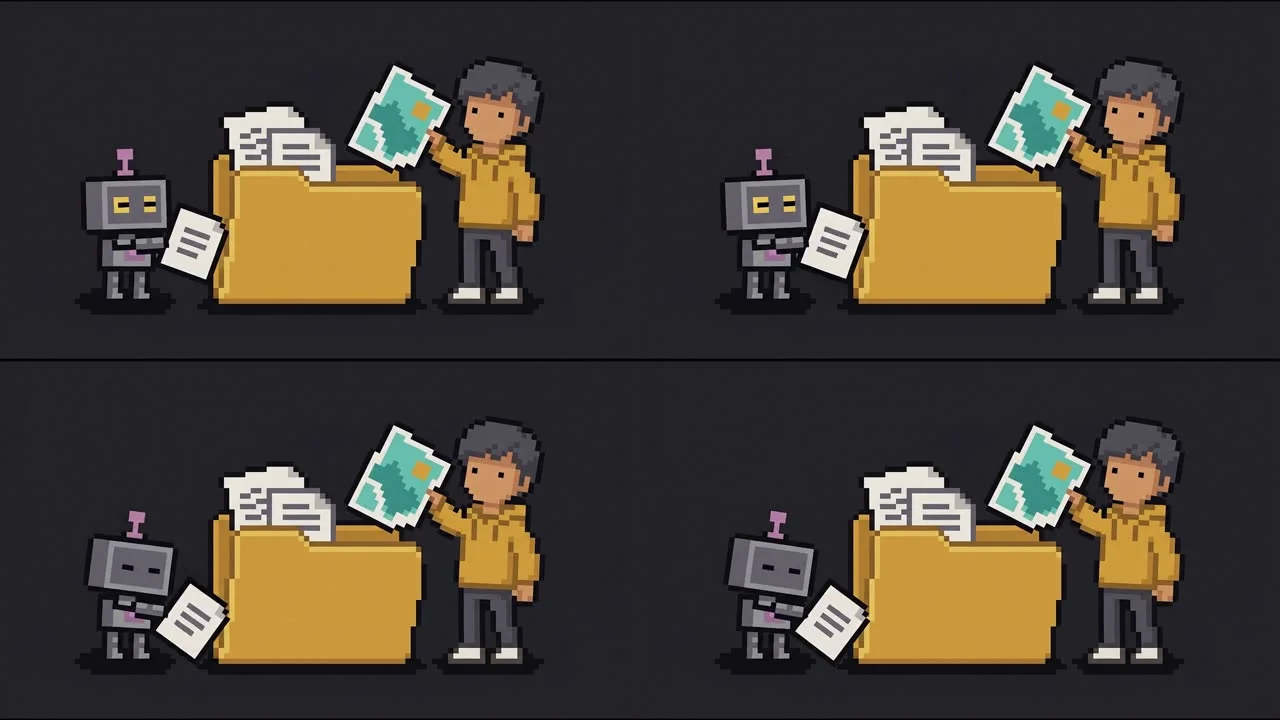
- Frame sheets: four frames a second, 250 ms apart, in a 2 × 2 grid, each frame 640 px on its long side, so a sheet of this clip is 1280 × 720. One sheet per second, so the eight-second clip below has eight,
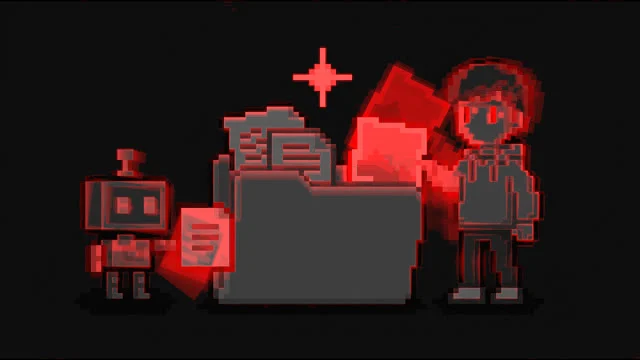
001.jpgto008.jpg, read left to right, top to bottom. first-last.jpg: the first and the last frame side by side, to see whether a clip meets itself in a loop.motion.jpg, the motion map: red marks what changed during the clip, over a dimmed first frame.- Per second, how far the picture has moved from the first frame and from the frame before, in percent, in
info.md.
Here is the hero's clip with frame sheet 003 and the motion map of loop-relay-clip, version 2. The
site's copy of the clip is eight seconds, 1280 × 720, 24 frames a second, with no sound track. Press play to watch it.
What the pictures can't carry is sound. As the home page says under trade-offs: the agent can't hear, and checking a clip's sound is your job.
From the approved file to this site
Once a slot was approved, its final file went into this site's repository in four steps:
- Approve the slot in Asset Prompter.
- Convert its
final.pngtoassets/art/<slot>.webp. About 1400 px wide is plenty; the files here are 1280 and 960 px wide. - For a clip, save
final.mp4asassets/art/<slot>.mp4, without sound. - Make the clip's AV1 copy, and keep it only if every frame of it is within SSIM 0.995 of the H.264 frame:
ffmpeg -i assets/art/<slot>.mp4 -c:v libsvtav1 -preset 3 -crf 30 -g 192 -pix_fmt yuv420p -svtav1-params tune=0 -an -movflags +faststart assets/art/<slot>-av1.mp4
The AV1 copies are about half the bytes: loop-relay is 365 KiB against 776 KiB in H.264, and
gallery-full 245 KiB against 536 KiB. The lowest frame SSIM of the two was 0.9956. The home page takes the
AV1 file only where the browser answers “probably” when asked whether it plays it, and also says, where it can tell,
that it decodes AV1 in hardware, or plays no H.264 at all; otherwise, or if the AV1 file fails, the H.264 file.
Sizes and crops come from the approved file
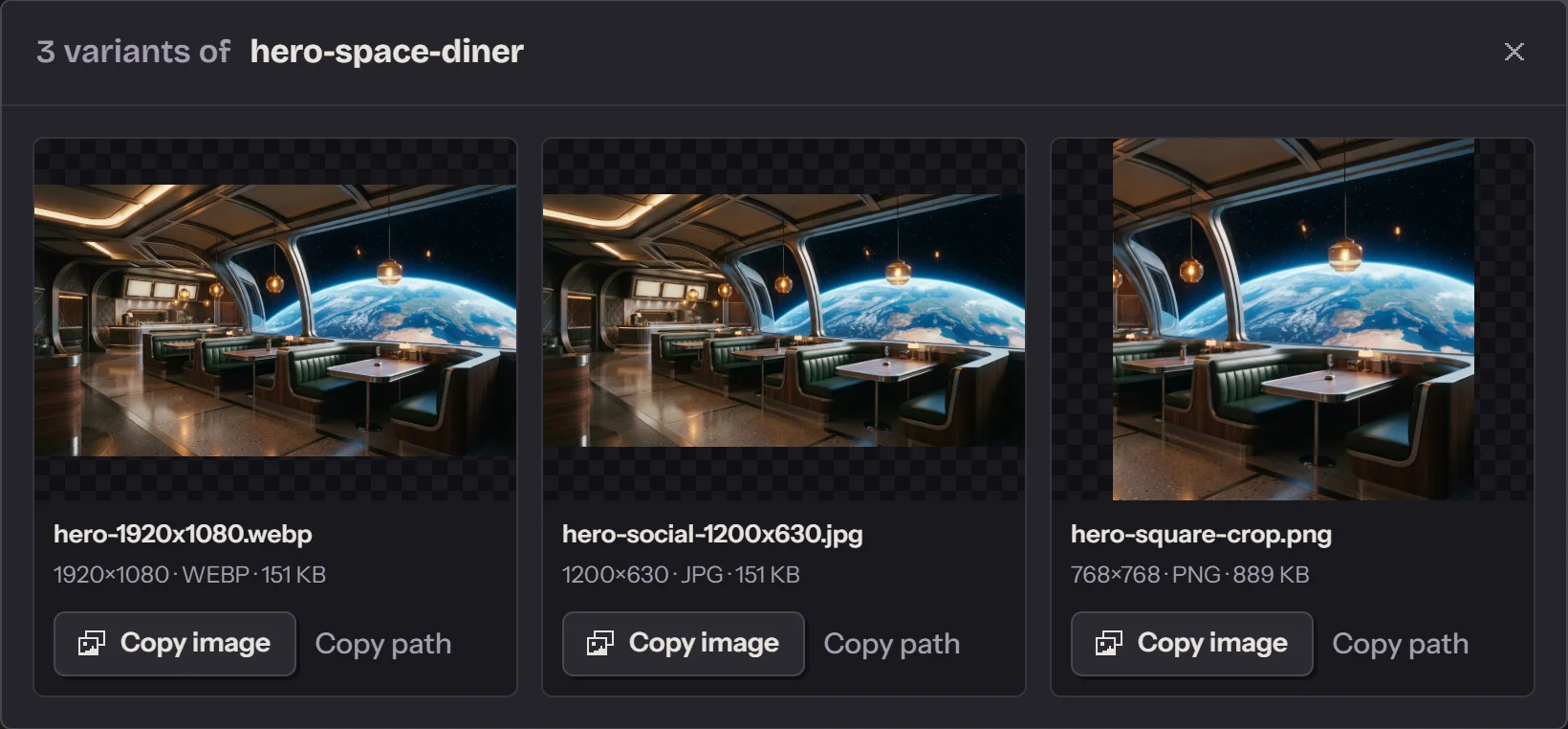
A slot's exports/ folder holds what the agent makes from the final file: crops, other sizes, other formats
and small edits, with no new generation. The app shows them beside the final picture, each with a Copy image button.
The dialog below is from hero-space-diner in orbital-eats, the project the screenshots of the app on
the home page come from, not from this site's project.
One revision, as the app shows it
The screenshots of the app on the home page come from that project, from the slot
observation-dining-room. In the project itself that slot is still waiting for approval; the screenshots
show a staged copy. Read off the cards, its revision went like this:
slot.md:Atmospheric photograph for the 'About Our Dining Experience' section of the website. It must show the spacious seating area and the realistic observation lounge overlooking outer space.
- Version 1: Image, 16:9, Nano Banana Pro, a prompt of 374 characters that begins
Eye-level wide photograph of the main observation dining hall in an orbital restaurant.
- The change request on version 1:
Too cold and empty. Make the booths warm cognac leather, add warm ceiling lights, and let the sun rise over the horizon.
- Version 2, a prompt of 637 characters. The agent's note:
Changed in v2: Warm cognac booths, warm ceiling light strips and a sunrise over the horizon; v1 was cold and empty.
- Three results for version 2, and the agent's verdict
Agent approves, picks 2.png
, a picture of 1376 × 768.

What it took, and what it didn't do
Every illustration was generated by hand: someone pasted the prompt into Google Flow and pressed Generate there. Asset Prompter doesn't generate anything. Flow has no public API (see which generators have an API or an MCP server), so an agent can't press Generate in it; what the folder gave the agent was the results, to see, review and ask again.
For batches that run while you are away, pick a generator with an API or an MCP server instead. The other ways, and when each fits, are in five ways to get images into your coding agent's project.
Give your agent a way to ask for pictures.
Download the folder, run setup, paste one message.